User Management. Overview
The User Management section of the Management Console contains tools for managing Organizational Units (OU) and User Accounts on the server. The server offers you to build your own IM structure, create the Organizational Units tree and arrange users by any criteria specific to your organization and/or for the best type and view. An Organizational Unit is a container that stores user accounts. By managing the OU settings, you can control the list of users visible to all users in the current container. So it is simple to create a global messaging workspace and isolate one group of users from another.
 |
For example, your company has several branches and you do not want to allow users from the "Staff" department in the office "A" to view users from the "HR" department in office "B", send messages and files to them. Just open the "Staff" OU permissions settings and select "HR" OU in the tree. |
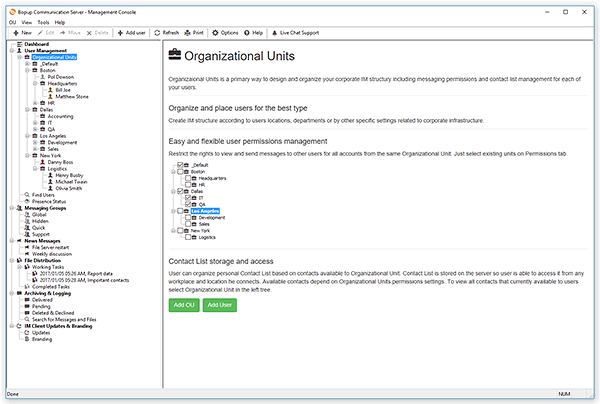 |
| Description of the Organizational Units feature in the Management Console |
There is a built-in _Default Organizational Unit in the server. This OU cannot be moved or deleted and it is used as the default container. All new user accounts are added to this OU by default. You can move one or more users from one OU to another and change your IM workspace structure at any time.
Select the User Management item in the left tree to switch the view to the User Management. You can also expand your own Organizational Units tree (if created) and select the OU or User Account profile to switch to.



 Facebook page
 Follow Us on Twitter
 YouTube channel
 Read Our News and Blog